
8 Best AI Music Generators to Create Original Songs
The fastest way to turn a lyric or an idea into a finished, original song in 2026 is an AI music generator, and after we...
I've lost count of how many AI coding tools I've installed this year. Most of them can write a clean function from a one-line prompt. Far fewer can tell you why that function quietly breaks three files over, which is the part I actually care about. So over the past few weeks I ran all the big ones through the same two jobs. Build a real feature from scratch, then fix a nasty bug I didn't plant myself. A couple were brilliant. A couple looked great until something went wrong in production. These are the 7 that held up, with what each one is good at, where it got on my nerves, roughly what it costs right now, and who it's actually for.
Writing code and fixing code are not the same skill, and plenty of tools are good at one and clueless about the other. Autocomplete that spits out a tidy function means nothing if the thing still crashes the moment real users show up. So I gave every tool the same two jobs and watched closely.
The first was the build. Start with an empty folder and a plain-English brief, and put together a small but real feature. A REST endpoint with validation, a couple of UI components, and a database call, all actually talking to each other.
The second was the bug hunt. Drop the tool into a codebase it had never seen, hand it a failing test and a vague complaint, and see whether it could follow the problem across files without quietly breaking something else.
After a few rounds, the same handful of things kept separating the keepers from the ones that only shine in a demo. Does it understand the whole project, or just the file that happens to be open? Real bugs almost never sit where the error message points. Does it actually do things, or only suggest them? The ones worth paying for can plan a change, touch several files, run the tests, read what came back, and try again. Does it fit the way I already work instead of asking me to relearn everything? And can I see its reasoning, so I can jump in when it's wrong, which still happens more than you'd like.
| Tool | Best For | Standout Debugging Trick | Entry Cost |
|---|---|---|---|
| Cursor | All-around project work & multi-file edits | Agent mode scans whole repo & creates patches | Free / Pro $20/mo |
| Claude Code | Heavy codebases & deep architectural bugs | Traces complex logic and maps out root causes | Included in Claude Pro ~$20/mo |
| GitHub Copilot | Staying comfortably in your current editor | Inline chat explanations & multi-file agent edits | Free / Pro $10/mo |
| OpenAI Codex | Developers already integrated into ChatGPT | Plan-run-observe loop with user approval steps | Included in ChatGPT Plus $20/mo |
| Devin Desktop | Long debugging sessions needing memory | Persistent local agent memory across sessions | Free / Pro $20/mo |
| Replit | Quick browser prototyping & beginners | Plain-language explanations and instant deploys | Free / Core ~$20/mo |
| Tabnine | Enterprise teams with strict privacy rules | Zero code retention and local air-gappe | Free / From ~$39/user/mo |
Cursor is the one I end up in most days. It's a fork of VS Code, so moving over cost me nothing. My keybindings, my themes, my extensions, all still there. The difference is that the AI isn't bolted on to the side. It sits right in the middle of how you edit.
Ask it for a feature and the agent scaffolds the files, grabs the dependencies, and writes the boring parts. The Tab completions are quick and usually guess what I'm about to type. When something breaks, Agent mode is the part that earns its keep. Point it at the bug, watch it read through the files, and check the patch it suggests before you accept anything. Cursor 2.0 brought in Composer, their own in-house model built for speed, plus the option to run a few agents at once when you want to pit two approaches against each other.
My Hands-On Experience with Cursor
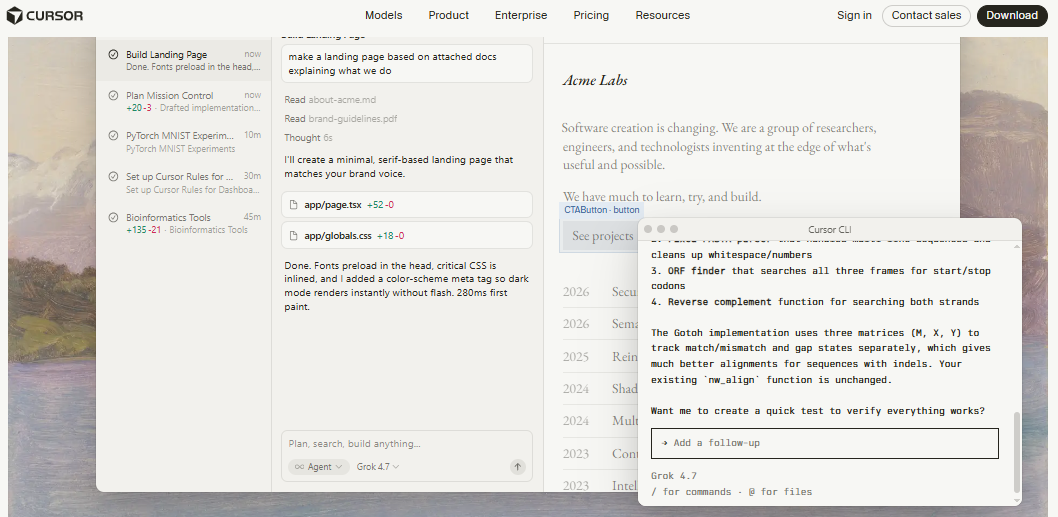
While testing Cursor's new Plan Mode, I asked it to 'build a mission control interface, similar to the exposé-style window manager on macOS.' Within seconds it mapped out a strategy, breaking the work into tasks like building landing pages and setting up environment rules, all laid out in the sidebar.
Watching it think through AppManager.tsx for a few seconds, hunt for UI patterns, and then land a clean +135/-21 diff made the whole thing feel easy. The catch is that if you lean hard on agent loops in a big codebase, your fast-request credits vanish quicker than you'd expect.
If you want one serious IDE that both writes features and digs through multi-file bugs without making you switch tools, start here. It's free to try, and Pro runs about $20 a month.
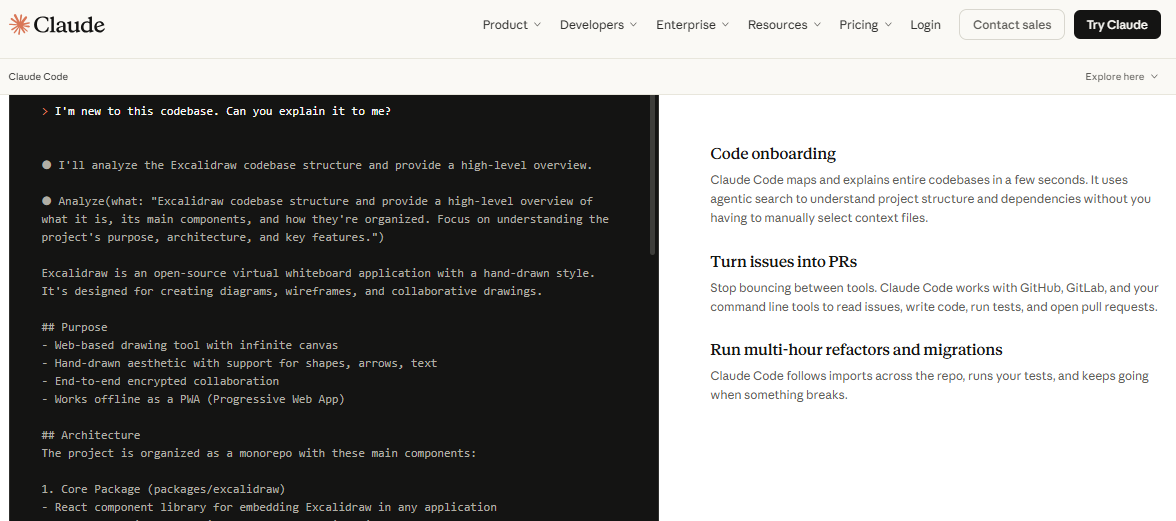
When a bug is really buried, somewhere deep in a big repo I didn't write, this is what I open. Claude Code mostly lives in your terminal, which feels a little strange next to the usual IDE extensions, but nothing else I tried reasons about a messy codebase quite as well.
It doesn't just index your files and call it done. It reads around the project, follows the data from one module to the next, works out a theory for what's going wrong, and then explains the fix as it goes instead of dumping a diff on you. Run /init once and it writes a small memory file so it remembers how your project is laid out next time.
My Hands-On Experience with Claude Code
I threw a genuinely annoying bug at it, a race condition that charged people twice when they double-clicked the pay button. Working inside the acme-storefront repo, Claude read three different files, ran a test charge, and traced it back to createCharge() minting a fresh idempotency key on every click instead of tying it to the checkout session.
It edited charges.ts (+9 -3) and added logic to disable the button while a charge was in flight. One thing to know is that all that deep reasoning chews through your usage fast if you point it at a huge, unoptimized repo.
Hard to beat for debugging old code or untangling a messy refactor. You get it through a Claude Pro plan at roughly $20 a month, with bigger tiers if you really lean on it.
If you'd rather not change a single thing about your setup, Copilot is the easy answer. Drop the extension into VS Code, JetBrains, Visual Studio, Neovim, or Xcode, and you get autocomplete, a chat panel, and multi-file help without learning anything new.
Its inline suggestions are still some of the fastest and most natural to type alongside. It won't reason about a giant codebase the way Cursor or Claude Code will, but it's cheap and it's everywhere, which is why a lot of people never bother leaving it.
My Hands-On Experience with GitHub Copilot
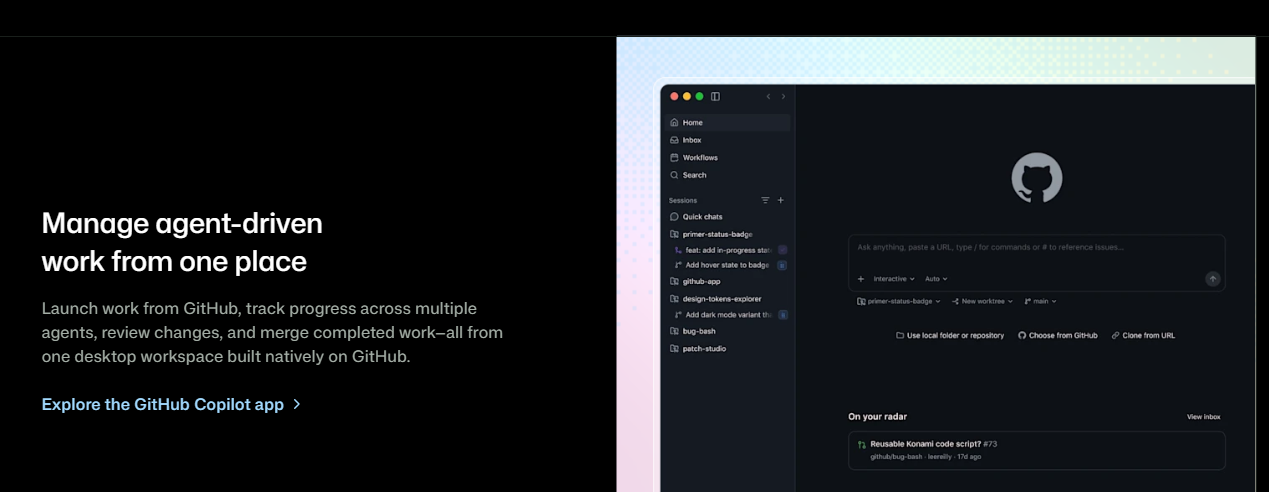
I spent some time in GitHub's newer desktop workspace app, which pulls agent-driven work into one place. I set up parallel sessions for different jobs, like chasing bug-bash fixes and updating design tokens, and could review the incoming pull requests and worktree patches without bouncing out of my main editor every two minutes.
It still trips over complicated multi-file logic now and then compared with the dedicated agent IDEs, but at $10 a month I'm not going to complain much.
Great if you just want solid help and chat inside the editor you already use. There's a free tier, and Pro is $10 a month, which is tough to argue with.
Codex is for the 'here's the goal, go handle it' crowd rather than the 'help me with this line' one. You hand it a task, it sketches a plan, runs commands in a sandbox, looks at what happened, and waits for you to sign off before anything gets committed.
Because it's wired straight into OpenAI's world, you can reach it from ChatGPT in the browser, the Codex CLI, or an editor plugin, all on the same login you're already paying for.
My Hands-On Experience with OpenAI Codex
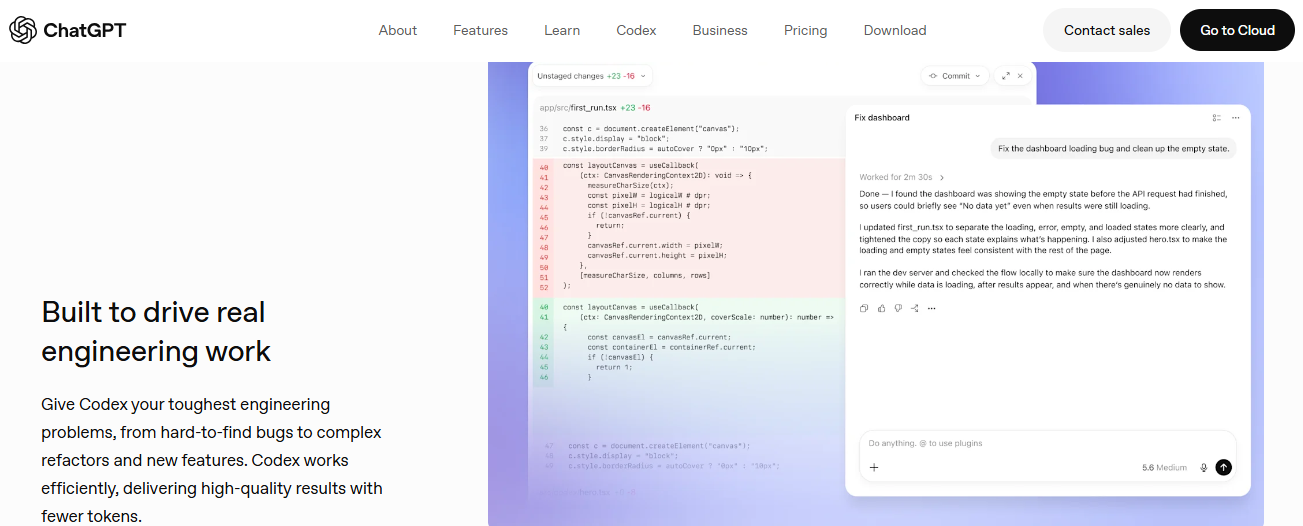
I pointed it at a messy monorepo with iOS, miniapp, and superapp packages and gave it a broad task. Codex lined up the recent agent items, like finding open PRs, squeezing down video assets, and tweaking corner radii, in a tidy sidebar.
Switching to a higher-reasoning model let it push through complex file updates without me setting up local dev containers or heavy IDE extensions.
An easy call if your team already runs on ChatGPT Plus ($20 a month) and you'd rather keep your coding in the same place.
Quick heads up, because it trips people up. Windsurf is now Devin Desktop. Cognition folded it into their Devin lineup and shipped the new, much faster Rust-based Devin Local agent alongside it. Underneath it's still a VS Code fork with a good grip on your whole workspace, but memory is where it pulls ahead.
Most tools treat every new chat as a blank page. Devin's local agent holds on to your project context, what you tried last time, and your rules, across days. Come back to a stubborn bug tomorrow and you're not burning ten minutes re-explaining your folder layout.
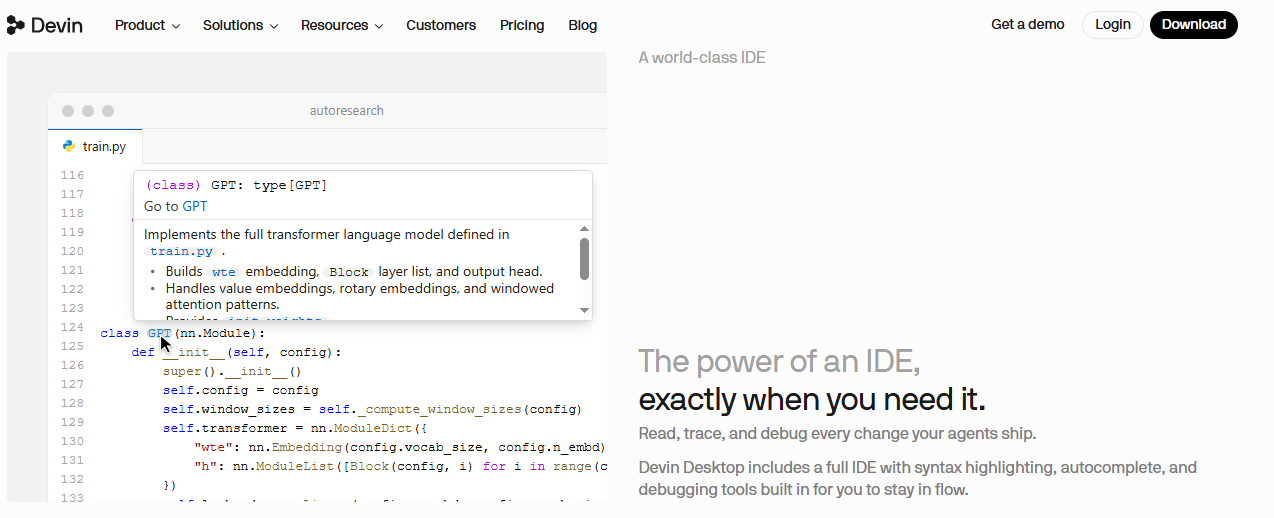
My Hands-On Experience with Devin Desktop
In the middle of chasing a gnarly state-management bug spread over a few components, I closed my editor on purpose and came back the next morning. Devin Local picked up right where we'd stopped, remembering the earlier terminal logs and the constraints I'd set, no fuss.
A good fit if you like the Cursor feel but tend to spend days on the same bug and want it to remember where you left off. Free to start, $20 a month for Pro.
Replit takes the whole 'set up your environment' headache off the table. It's a full IDE in the browser with an AI agent attached, handling the frontend, the backend, the database, and the deploy, all in one tab.
No wrestling with Node versions or missing env vars. You say what you want, the agent lays out a plan, asks a couple of questions, then builds it and puts it online.
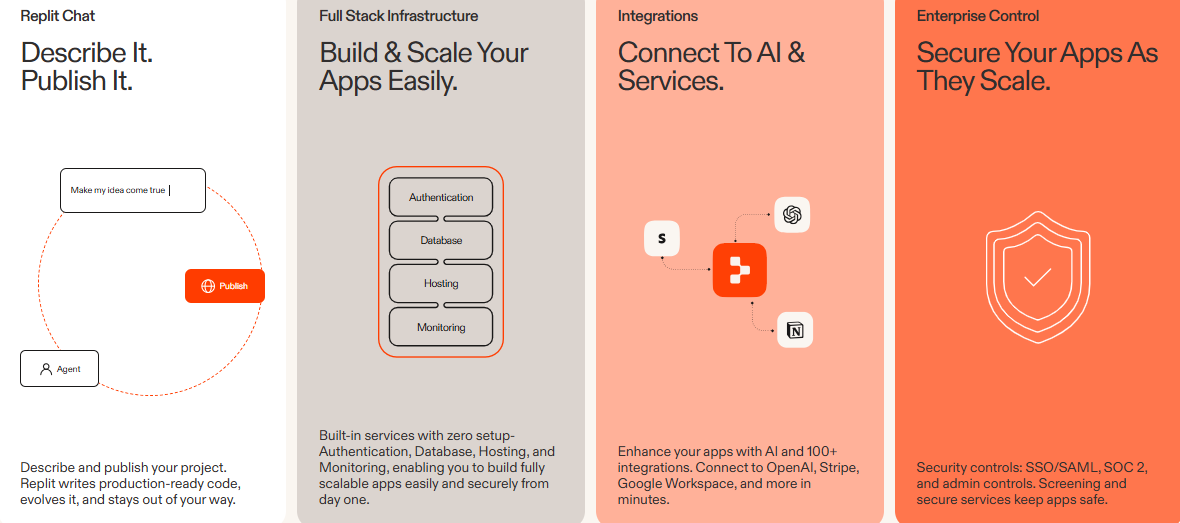
My Hands-On Experience with Replit
I spun up a full-stack React and Node app straight from a cheap Chromebook, no terminal in sight. The agent set up a cloud PostgreSQL database, wrote the API endpoints, and handed me a working public URL in under three minutes.
My pick for beginners, hackathons, and anyone who wants to test an idea tonight without installing a thing. Free to start, with the Core plan around $20 a month.
Most of these tools are built to make one developer faster. Tabnine is built for a harder question. How do you hand AI to a whole engineering org without leaking proprietary code or tripping over compliance?
The coding help itself is perfectly good, context-aware completions and a chat agent. The real reason to pick it is everything wrapped around that. Nothing retained, no training on your code, SOC 2 and GDPR handled, and deployment that can run fully air-gapped on your own servers.
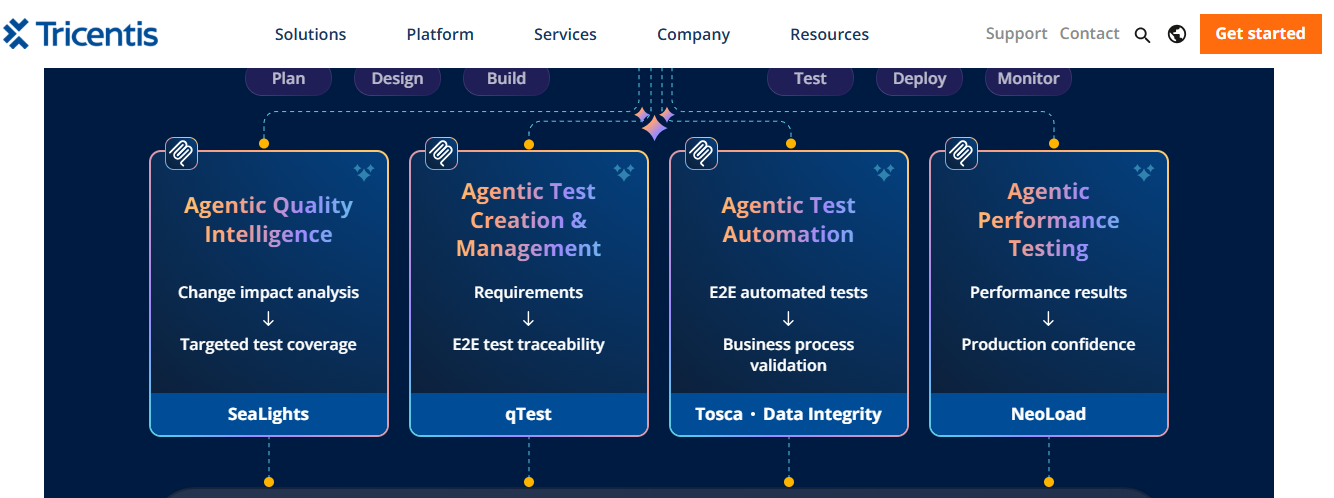
My Hands-On Experience with Tabnine
I ran it in a simulated offline enterprise setup, and it did its code completions and security checks entirely on the local machine, never reaching out to a public API. For a heavily regulated shop, that's the whole ballgame.
Close to non-negotiable for big engineering teams, or healthcare and finance shops with strict rules about where data goes. Pricing starts around $39 per user a month.
There's no single best tool here, and anyone who says otherwise is probably selling one. It really comes down to how you work.
After a few weeks of building things, breaking things, and throwing other people's messy code at all of these, I think about them differently than I did going in. The demos love to show an app appearing out of thin air in ten seconds. Day to day it's a lot less magic than that. You're steering, checking the work, and stepping in when you need to.
My honest read is this. None of them are replacing developers any time soon, and none of them are magic. You'll still hit invented logic, missed edge cases, and fixes that are flat wrong but very confident about it. What they're genuinely good at is killing the boring friction. The boilerplate, the where-does-this-data-go detective work, the bug that would've quietly eaten your whole afternoon.
For me it landed on two tools. Cursor does most of the day-to-day writing, and Claude Code is the one I open when a deep, multi-file bug takes production down. Yours might look nothing like that, depending on whether you live in the terminal, the browser, or ChatGPT. Use the free tiers, run your own build-it-then-break-it test on your own code, and let that make the call.

The fastest way to turn a lyric or an idea into a finished, original song in 2026 is an AI music generator, and after we...

A good logo used to mean weeks of back-and-forth with a designer and a bill that could run into the hundreds or thousand...

Scam sites used to be easy to laugh at. Broken English, clip-art logos, a checkout page that looked like it was built in...

Are you in looking for a powerful and beautifully designed laptop? So your wait was over. Apple introduced its 12-inch M...