Step-by-Step Guide To Become A Data Scientist From Scratch
Understanding the Role of a Data ScientistBefore embarking on your data science journey, it's essential to understand th...
I edit a lot of photos. Some of it is work (product shots for a small online store I help run, images for blog posts and social accounts), and some of it is just my own stuff that I want looking better before it goes anywhere. Over the past year I got tired of doing everything by hand in one program, so I started testing pretty much every AI photo editor I could get my hands on.
What I wanted was simple. I was after tools that take the boring parts off my plate, cutting out backgrounds, cleaning up noise, removing a stranger who wandered into the frame, without making my photos look fake or plasticky. Some of these nailed it. A few were more hype than help.
These are the eight I kept coming back to, what each one is good at, and where each one let me down.
One note before the list. The prices below are current as of October 2026, and this kind of software changes them often, so check each tool's own site before you buy.
Photoshop is the one I reach for when an edit has to be exact. The AI parts are now built right into the normal workflow. Generative Fill lets me select an area, type what I want, and have it fill in. I have used it to extend a cramped background so a portrait had room to breathe, and to erase a trash can from an otherwise clean street shot. Generative Expand does the same thing when I need to push a photo past its original edges, which saved me when a client wanted a wide landscape crop out of a vertical shot.
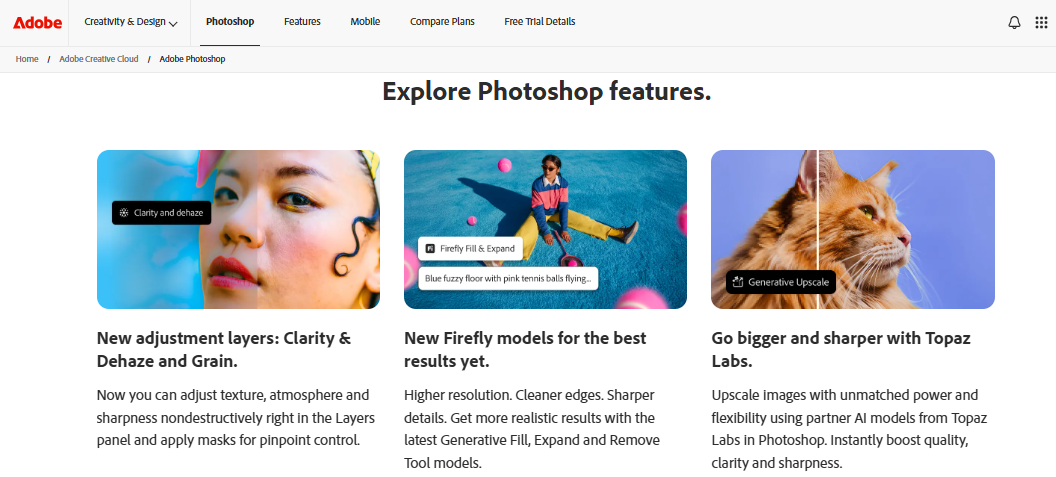
What keeps Photoshop at the top for me is that the AI sits on top of real layers, masks, and selection tools. When it gets something 90 percent right, I can fix the last 10 percent by hand instead of regenerating and hoping. Nothing else here gives me that kind of cleanup.
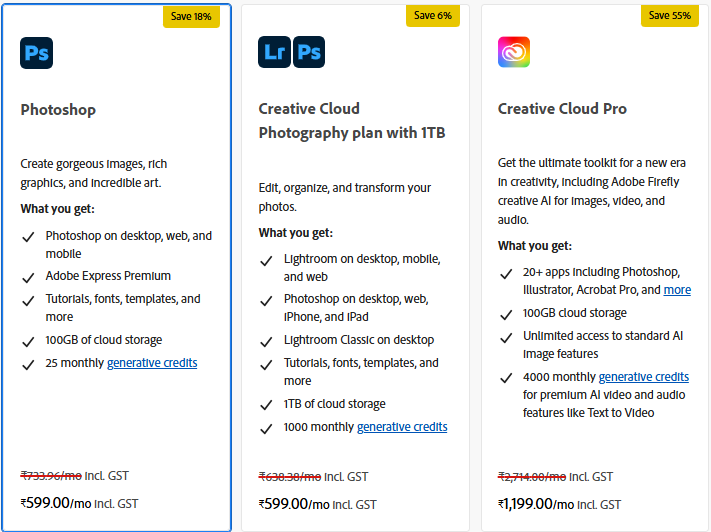
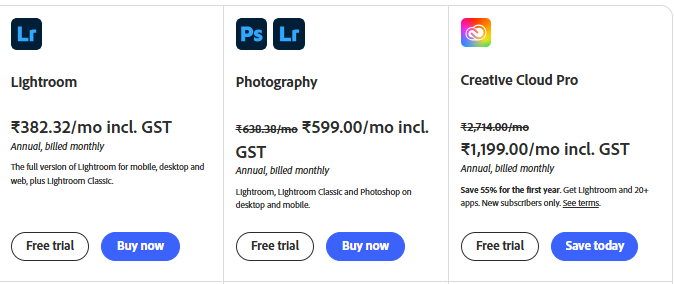
The downsides are the familiar ones. There is a learning curve, and the generative features run on monthly credits, so heavy users can burn through the allowance. It comes through Adobe's Photography Plan for the tier that bundles Photoshop with Lightroom and 20GB of storage for the 1TB tier with more credits. If you only need quick fixes, this is more program than you need. If you want to control every pixel, it is still the benchmark.
Where Photoshop is about one image at a time, Lightroom is what I use when I come home with a few hundred photos and need them all to look good without losing a whole weekend. The AI here is quieter and, for photographers, more useful day to day.
Generative Remove is the feature I lean on most. I point it at a distraction, a power line across a sky or a photobomber at the edge of a group shot, and it paints the thing out and fills the gap. Its Denoise is the best I have used for rescuing low-light photos, the kind of grainy concert and indoor shots that used to be a lost cause. There is also a Lens Blur tool that fakes a shallow depth of field after the fact, handy for the times I forgot to open up the aperture.
Lightroom keeps everything synced across my laptop, phone, and the web, so I can start on one and finish on another. It is subscription only, part of the same Adobe plan, so you are renting rather than owning, and the generative tools draw from the same monthly credits. For anyone working through big batches, though, it is the smoothest option on this list.
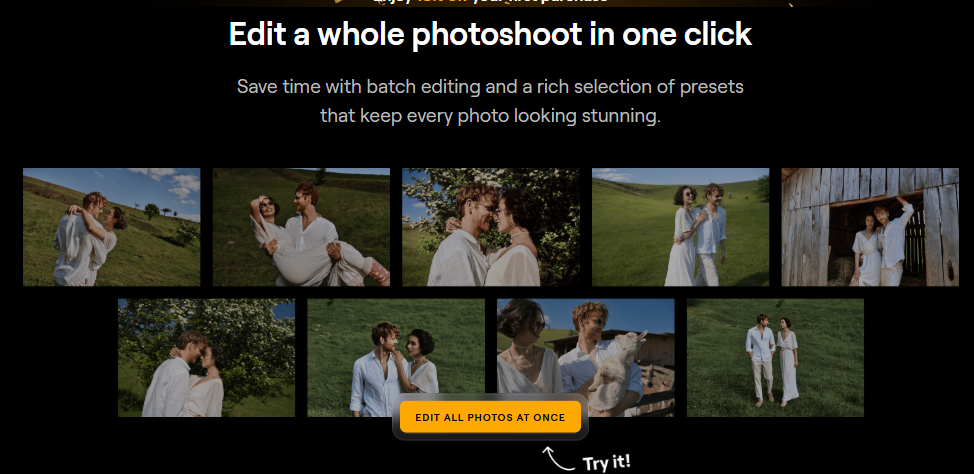
Luminar Neo is the one I recommend to friends who want impressive results fast and hate the idea of paying every month forever. Skylum built it around AI, and you can tell. Sky replacement looks believable, relighting a face is a slider instead of an hour of dodging and burning, and the newer generative tools (they call them GenErase, GenExpand, and GenSwap) handle removing and adding objects well.
The thing that sets it apart for me is the pricing. You can buy it once and own it, which over a few years works out far cheaper than renting Photoshop. I keep it installed specifically for portraits and landscapes, where its one-click tools get me most of the way there before I touch anything manually.
It is not flawless. It can drag on an older machine, some of the newest AI tools come as paid add-ons or need a yearly update pass, and it does not give you the deep manual control Photoshop does. But for the money, the amount of good-looking editing you can do with almost no skill is hard to beat. The one-time license runs somewhere between $80 and $160 depending on the tier and whatever sale is on, and Skylum almost always has one on. There is also a yearly subscription of around $70 to $120 if you would rather pay for every new tool as it lands.

This one does something narrow and does it better than anything else I have tried. Topaz Photo AI is not really for creative edits. It is for rescuing images that are blurry, noisy, or too low resolution. I think of it as a repair shop rather than a studio.
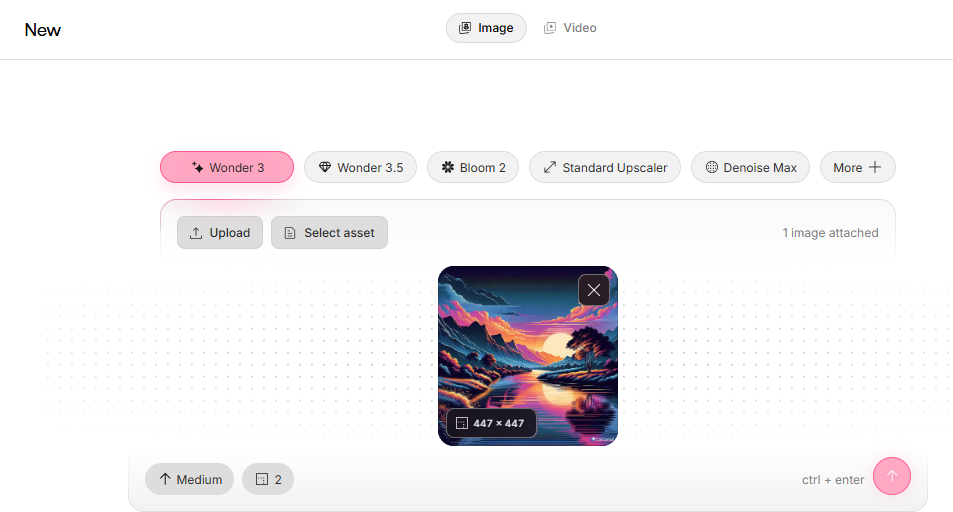
I have fed it soft, grainy photos I had written off and gotten back sharp, clean versions I could print. The upscaling is the real draw. It takes a small image and enlarges it several times over while inventing believable detail, which saved me when a client sent a tiny logo and an old photo that both needed to go on something large. The face recovery quietly impressed me too, pulling usable detail out of blurry faces in old family pictures.
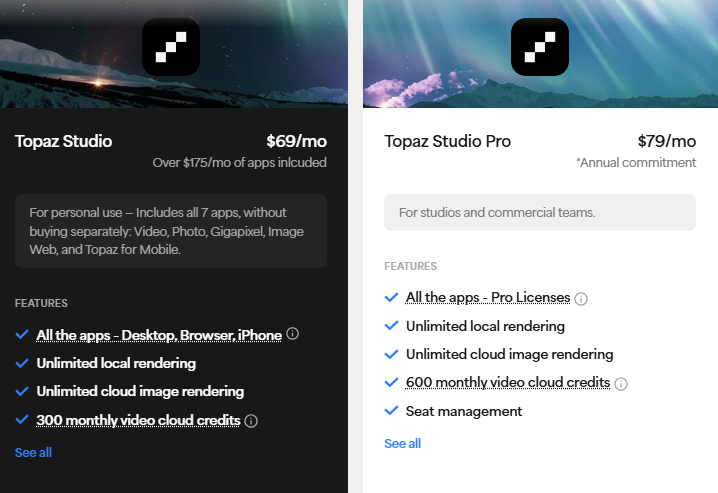
The catch is cost and scope. It does one job, so it is a companion to another editor, not a replacement. Topaz has also moved to a subscription, and it is not cheap. There is no free version or trial anymore either. If image quality is your main problem, it is worth the money. If it is not, skip it.
Canva is the one I open when I need something made and shared in the next ten minutes and I am not trying to win a photography award. It is built for people who want a good result without learning real editing software, which describes most of the people I make graphics with.
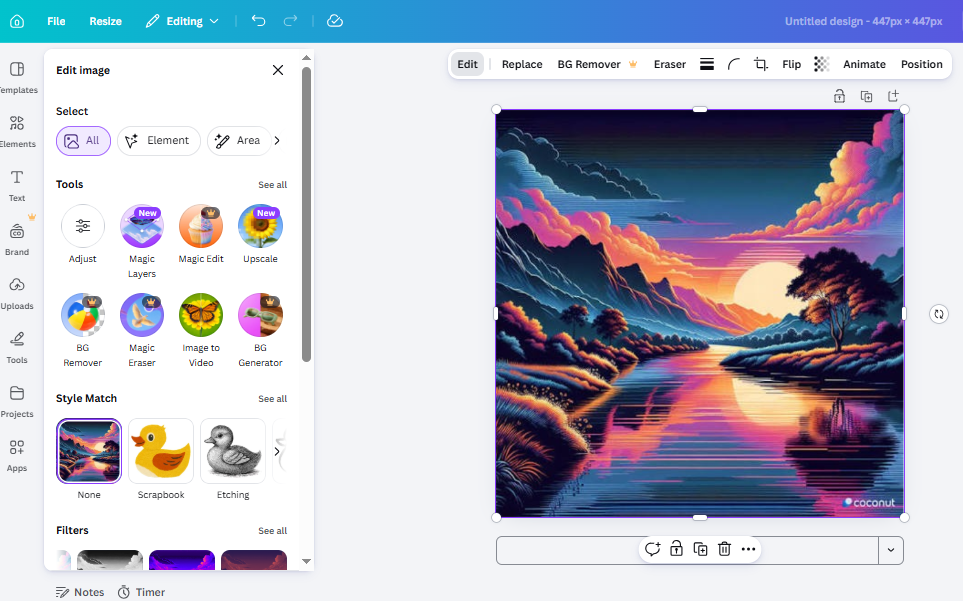
Its background remover is one click and works on most photos. Magic Eraser wipes out objects you brush over, and Magic Edit swaps one thing for another when you describe it. None of these are the most powerful version of that tool, but they are fast, they sit right next to templates for social posts and flyers, and I can hand the whole thing to a coworker who has never edited a photo and trust they will manage.
The limits show up when you push it. Fine, detailed retouching is not its strength. There is a free version that is worth using, with a monthly allowance of Magic Studio credits. For marketing images, social content, and anything where speed and sharing matter more than precision, it stays in a browser tab all day.

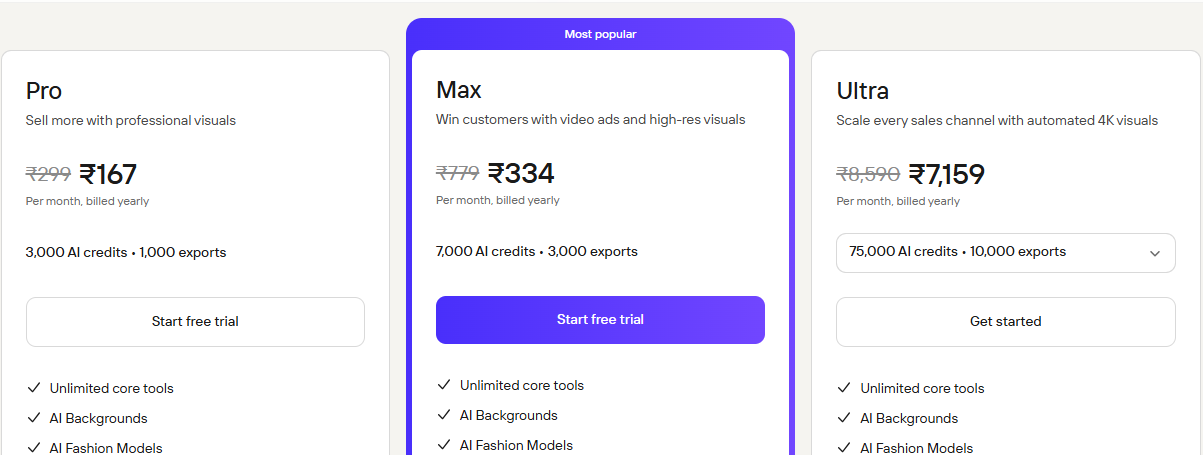
If you sell anything online, this is the tool I would put in front of you first. Photoroom is built around product photography, and it shows in how little fuss it takes to turn a phone snapshot into something that looks ready for a listing.
I used it to prep products for a friend's shop, and the loop was quick. It cut the product cleanly off its background (it is surprisingly good at tricky edges like hair and glass), dropped it onto a plain white or a staged lifestyle scene, and added a realistic shadow so the thing did not look like it was floating. The batch feature let me run a whole set of items at once instead of one by one, which is the part that saves a seller real hours. There is even a feature that puts clothing on AI-generated models, which small apparel sellers seem to love.
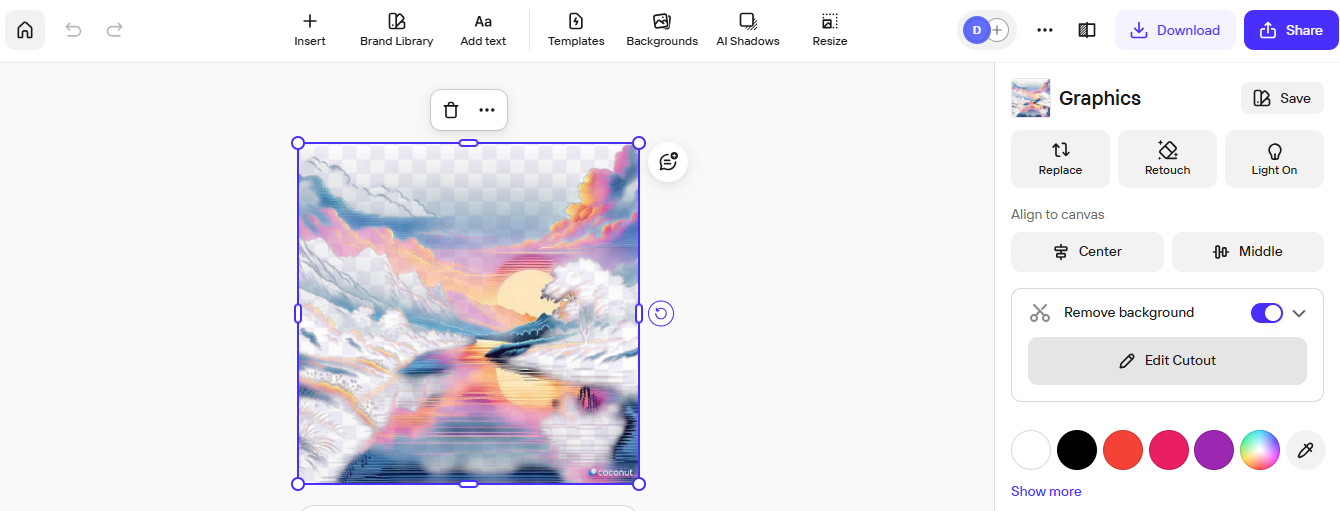
It leans hard toward e-commerce, so it is not the tool for your vacation photos. There is a free tier that covers basic background removal, and the paid plans unlock staging, batch work, and better models. For anyone photographing things to sell, it pays for itself fast.
Pixlr is my pick when I am on a computer that is not mine, or I just do not feel like installing anything. It runs entirely in a browser and splits into two sides, a simple one for quick jobs and a more Photoshop-like one for when I want layers and finer control.
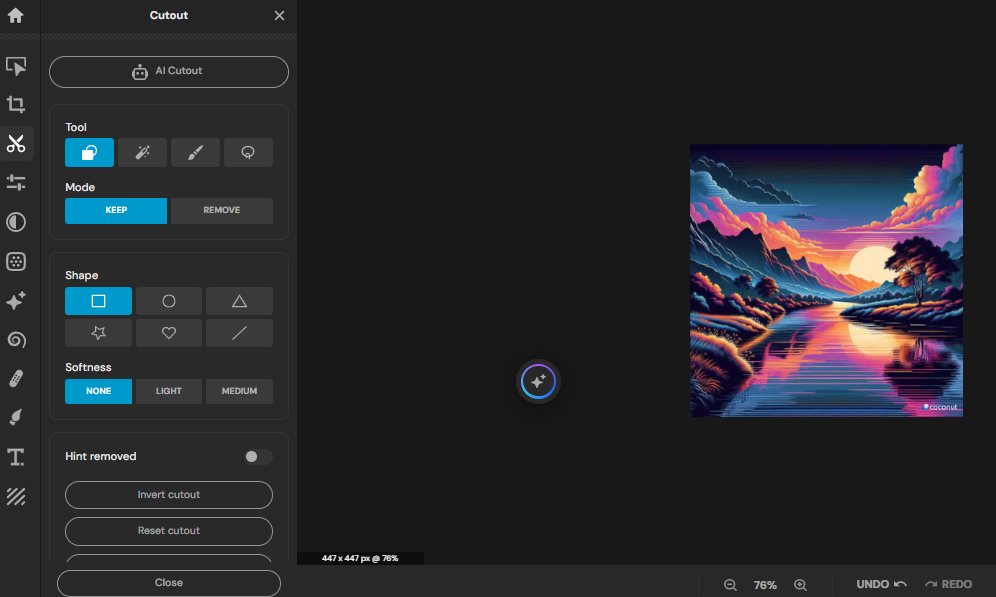
The AI tools have gotten good. There is a one-click background remover, a generative fill for adding or removing things, and an AI image generator built in. I have used it to knock out a quick social graphic and to clean up a photo on a borrowed laptop, and it held up fine for both. For free or near-free, it does more than it has any right to.
It will not replace a desktop editor for serious work, the free version carries ads and runs its AI on a credit allowance, and it needs a decent internet connection.
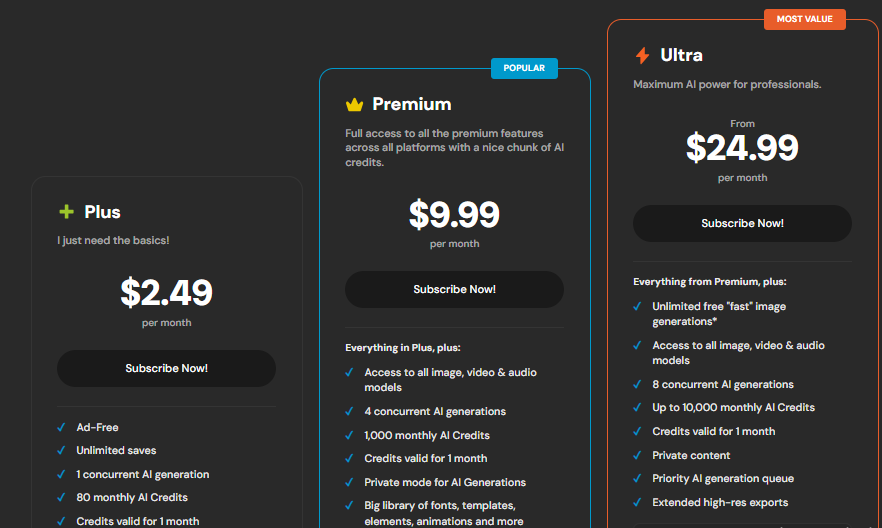
Most of my spur-of-the-moment editing happens on my phone, and Picsart is the app I enjoy using for it. It is aimed at social content and creative edits rather than careful restoration, and it leans into that with a huge library of effects, stickers, and templates.
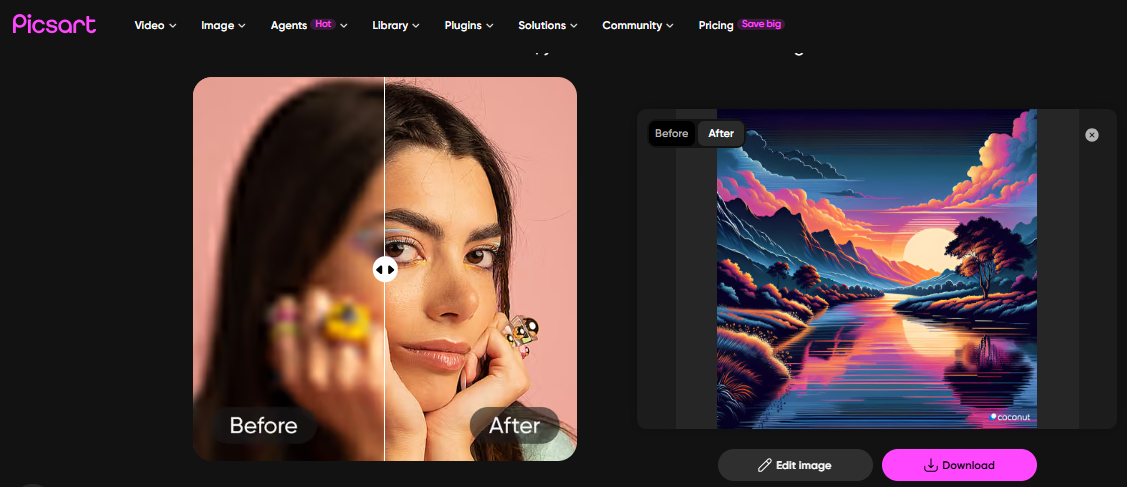
Its AI tools are the reason it earns a spot here and not just a passing mention. The retouch tools clean up portraits without turning skin to plastic if you go easy on the sliders, the background and object removal work well on a small screen, and there are AI features for swapping backgrounds and generating new elements. I have fixed up a photo for a story post in two minutes on the train, which is the whole point.
The trade-offs are there, as always. The interface can feel busy with how much it packs in, and it is not built for precision. For quick, fun, mobile-first editing aimed at social media, though, it is the one I open without thinking.
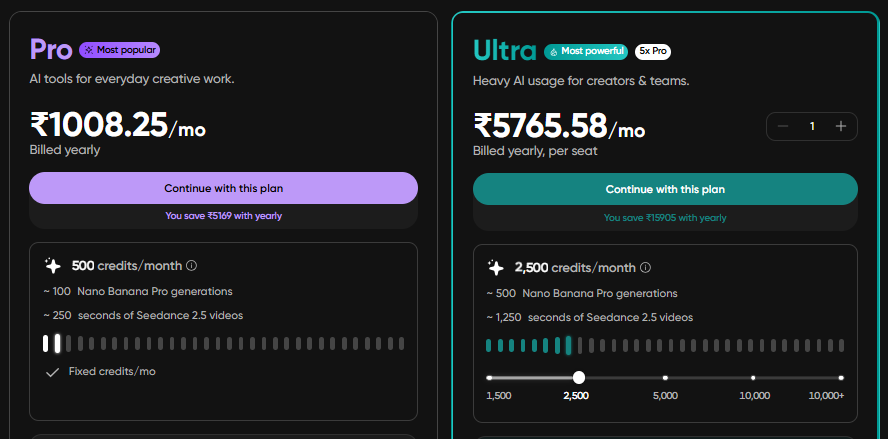
After all that testing, here is where I land. If someone forced me to pick just one, I would keep Adobe. For the way I work, the Photography Plan that bundles Photoshop and Lightroom does the most for the least money, and I would rather pay a little every month than lose tools my work leans on. Photoshop takes the detailed jobs, Lightroom takes the volume, and between them I can get almost anything done.
That said, if I were starting fresh today and did not want a subscription hanging over me, I would buy Luminar Neo without a second thought. It hands you most of the magic for a one-time price, and for a hobbyist or anyone editing their own photos, that is probably the smartest money on this whole list.
Topaz Photo AI stays on my machine as insurance. I do not open it often, but every time I do, it has pulled back a shot I thought was ruined, and that alone earns its place.
Everything else comes down to where you are and what you are doing. Canva and Pixlr sit in my browser for fast, share-it-now work. Photoroom is the one I would hand to anyone running a shop. Picsart is what lives on my phone for edits I do on the move.
My honest take, after wasting money on tools I stopped using within a month: do not pay for anything until you have run your own photos through the free version or the trial. Reviews, including this one, can only take you so far. The right tool is the one that handles the kind of photos you take, in the way you like to work. Start free, give it a little patience, and let the results make the choice for you.

Understanding the Role of a Data ScientistBefore embarking on your data science journey, it's essential to understand th...

Nobody subscribes to a podcast because the audio was mastered well.They subscribe because you said something worth heari...

The fastest way to turn a lyric or an idea into a finished, original song in 2026 is an AI music generator, and after we...

I've lost count of how many AI coding tools I've installed this year. Most of them can write a clean function from a one...