
Best AI Headshot Generators for Profile Photos
A profile photo is often the first impression you make on a recruiter, a client, or a new connection. AI headshot genera...
You have a spreadsheet with hundreds or thousands of rows, and the answer you need is buried in it. Which product is pulling its weight, which month slipped, which records are broken. Finding it by eye or by writing another formula is slow and easy to get wrong. This guide shows you how to hand that file to ChatGPT, ask the right questions, read the answers properly, and check the numbers before you act on them.
Once a file is uploaded, ChatGPT can do real analytical work, not vague "insights." In practice it can summarise a large table and name the patterns that matter, calculate totals, averages, medians, percentages, and change over time, compare performance across categories, flag missing values, duplicates, inconsistent labels, and figures that look off, explain and fix formulas, group records by any field, build charts and tables, and draft a short report with findings and next steps.
For some of this it writes and runs code in the background, which is what lets it do genuine calculation rather than guess from the text. For some data-analysis tasks, ChatGPT writes and runs Python code in a stateful Jupyter notebook environment, and it can display data as interactive tables when that helps.
What you get back depends on three things, the structure of your data, the features your account actually has, and how clearly you ask. A messy file produces a messy answer.
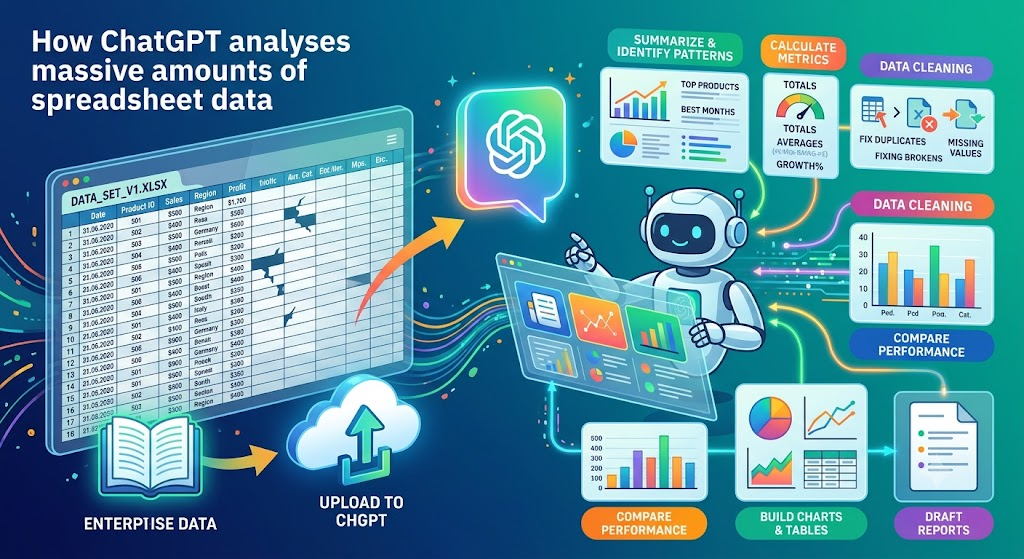
Five minutes of tidying changes the quality of everything that follows. OpenAI's own guidance is to upload structured data with descriptive column headers in the first row and one record per row, and to avoid multiple unrelated tables in one sheet, empty rows or columns that split the data, and images that contain values the model needs to read.
A short checklist before you upload.
Complex formatting, merged cells, formula-heavy workbooks, very large files, and tables trapped inside images all make analysis less reliable. A file can upload yet still be too large, complex, image-heavy, or poorly structured for complete analysis, and the number and complexity of formulas can slow it too. For those files, a simplified copy holding values instead of formulas usually works better.
Start a conversation at chatgpt.com or in the app and find the attachment control in the message box. ChatGPT supports common spreadsheet file types for data analysis including .xls, .xlsx, and .csv, alongside PDFs and text files, though available types can vary by model, plan, and account. Use an Excel workbook when you want to keep multiple sheets. Export to CSV when you have one clean table and want the simplest possible file, since CSV strips everything down to plain values.
Attach the file and send it, but do not ask for calculations yet. Ask ChatGPT to look first.
Please inspect the uploaded spreadsheet first. Identify the available sheets, column names, approximate number of records, data types, and any obvious data-quality issues. Do not change or remove any data yet. Explain what you can reliably analyse from this file.
If ChatGPT misreads a column or finds a sheet you forgot, you want to know that before you trust a total built on it.
Summarise this spreadsheet in plain English. Identify the most important figures, patterns, category differences, and unusual observations. Use the actual values from the file and distinguish confirmed findings from possible explanations.
Read the summary as a map, not the answer. It tells you which question is worth asking next.
The difference between a weak result and a strong one is the question. "Tell me about my sales" is vague. These are not.
Match the question to the columns you have and to the calculation you mean. Total revenue and average revenue per order are different questions, so say which one you want.
Check the spreadsheet for duplicate records, missing values, inconsistent category names, invalid dates, unexpected number formats, and suspicious outliers. Return a table containing the issue type, affected row or record identifier, relevant value, and recommended next check. Do not delete or overwrite anything.
Treat the result as a list to look at, not to fix blindly. An outlier is not automatically an error. A sale ten times the usual size might be a typo, or the one big contract that made your quarter.
Using the relevant columns in this file, calculate the total, average, median, minimum, and maximum for the main numerical measure. If dates are available, compare results by month. State the calculation method, identify any excluded records, and flag missing information that could affect the results.
Ask for the median alongside the average. The average gets dragged by one huge value while the median shows the typical case, and when the two disagree sharply that gap is itself a finding. For any percentage change, pin down the baseline and period, because "up 20 percent" means nothing until you know up from when.
Create a chart showing monthly revenue using the date and revenue columns. Label the axes clearly, use chronological order, and explain the three most important observations. If the file does not contain enough information for a reliable chart, tell me what is missing.
ChatGPT can return a chart as a static image, and for some types as an interactive version. Interactive charts are supported for bar, line, pie, and scatter charts, while other types may come back as static images. Use bar charts to compare categories, line charts for change over time, scatter plots for the relationship between two numerical variables, and tables when you need exact values. A chart shows that two things move together. It never proves one caused the other.
Prepare a concise report based only on the uploaded data. Include an executive summary, key findings with supporting figures, data-quality concerns, important limitations, and recommended next steps. Separate observed facts from interpretations and do not invent missing information.
The instruction to separate facts from interpretation is what stops ChatGPT from dressing a guess up as a finding.
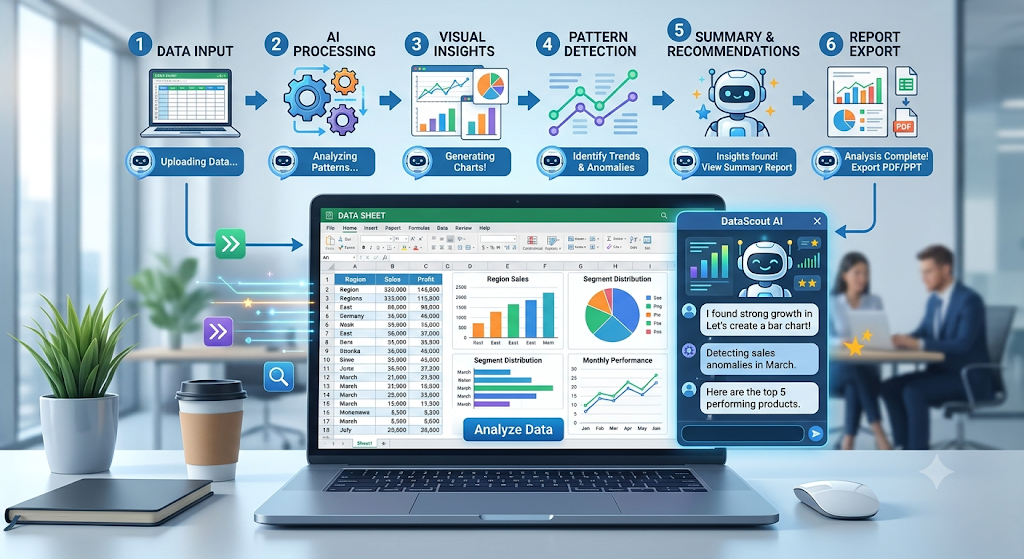
The dataset below is an illustrative example, not real company data, and I have not uploaded or tested it. I am walking through the figures so you can see what a clean analysis looks like and check the arithmetic yourself.
| Month | Product | Region | Orders | Revenue |
|---|---|---|---|---|
| January | Standard Plan | North | 120 | 6,000 |
| January | Pro Plan | North | 60 | 7,200 |
| February | Standard Plan | South | 140 | 7,000 |
| February | Pro Plan | South | 75 | 9,000 |
| March | Standard Plan | North | 160 | 8,000 |
| March | Pro Plan | North | 90 | 10,800 |
A sample prompt.
Summarise this sales data. Compare total revenue and average order value by product, identify the strongest and weakest results, and show monthly revenue. State your calculation method.
A sample output, worked through. Total revenue is 48,000. By product, the Pro Plan brings in 27,000 and the Standard Plan 21,000, so the Pro Plan is the stronger revenue product despite fewer orders, 225 against 420. The reason is average order value. The Pro Plan averages 120 per order (27,000 divided by 225) while the Standard Plan averages 50 (21,000 divided by 420). Monthly revenue rises from 13,200 in January to 16,000 in February and 18,800 in March. That is a 21.2 percent rise from January to February (2,800 on a 13,200 baseline) and a 42.4 percent rise across the quarter.
What this establishes and what it does not. It shows the Pro Plan earns more per order and that revenue grew every month in this sample. It does not show why, whether from more customers, a price change, or seasonality, because the file holds no such information. Adding the six revenue figures gives 48,000, which confirms the totals tie out.
Copy these, swap in your real column names, and send.
| Task | Copy-and-use prompt | What it helps you see |
|---|---|---|
| Sales performance | Using the Date, Product, and Revenue columns, show total and average revenue per product and the month-on-month trend. State your method. | Which products and months carry revenue |
| Monthly expenses | Group the Amount column by Category, show each category's share of total spending, and list the three largest. | Where the money actually goes |
| Website traffic | Using Date and Sessions, show weekly totals and any week that changed more than 20 percent from the week before. | Real movements rather than daily noise |
| Campaign performance | Compare campaigns using Spend, Clicks, and Conversions, calculate cost per conversion, and rank them. | Which campaign earns its budget |
| Customer feedback | Group the feedback column into recurring themes, count each, and give two real example comments per theme without inventing any. | The few issues that come up most |
| Inventory | Using Product, Units In Stock, and Units Sold, flag items below a stock level I give you and items with no sales. | What to reorder and what is dead stock |
| Comparing two files | I will upload two files with matching columns. Match on the ID column and list rows that appear in only one file or differ in value. | What changed or is missing between versions |
| Formula errors | Explain what this formula does, when it returns a wrong or error result, and a corrected version. | Why a formula misbehaves and how to fix it |
| Management summary | Write a half-page summary for a manager with three findings, each backed by a figure, and one open question. | A report you can forward as is |
Tasks that match two files or depend on a specific column only work when you name that column in the prompt.
There are two different things here, and it helps to keep them apart.
The first is what this guide covers, uploading a workbook into a normal ChatGPT conversation and asking questions in plain language, including help writing formulas and working across sheets. When connectors are enabled for your account, you can also attach files from connected sources such as Google Drive, OneDrive, and SharePoint.
The second is a separate product that lives inside the spreadsheet. OpenAI released an official add-in that puts ChatGPT in a sidebar next to your cells. OpenAI introduced ChatGPT for Excel in beta on March 5, 2026, extended it to Google Sheets on April 22, 2026, and, per an update dated May 5, 2026, made ChatGPT for Excel and Google Sheets generally available across all plans powered by GPT-5.5. That add-in builds and updates models and generates outputs from your cells directly in the workbook.
The distinction matters. Features of the in-spreadsheet add-in are not automatically present in a normal chat, and the reverse holds too. Availability and setup change, so check the current official pages before you rely on either.
My honest view is that ChatGPT sits between a genuinely helpful assistant and a tool you should never hand the final word. It earns its place as a fast first pass. If you have a messy export and want to know roughly what is in it, where the gaps are, and which questions are worth asking, it gets you there in minutes rather than an afternoon. For me that is the real value. It changes how a data task starts, not whether you still have to do the thinking.
Where I stay cautious is the maths and the meaning. ChatGPT can produce a total with total confidence and still get it wrong, misread a column, or treat a one-off spike as a trend. That does not make it useless. It means the figures are a starting point, not a verdict, and anything feeding a real decision still deserves a check in Excel or Google Sheets.
So my recommendation is plain. Work from a copy so the original stays safe. Ask ChatGPT to inspect the data before it calculates anything. Investigate one clear question at a time rather than firing off a wall of instructions. Then verify the numbers that matter before you act. Do that, and ChatGPT becomes a sharp thinking partner for spreadsheet work. Skip it, and you are trusting a confident guess.

A profile photo is often the first impression you make on a recruiter, a client, or a new connection. AI headshot genera...

Every call that rings out to voicemail is a customer who will probably try a competitor before you call back. That is th...

Why these two terms get mixed upPeople use “AI-generated” and “auto-generated” as if they are the same thing, and in cas...

My inbox this morning was 213 unread. Two are clients who need an answer today. One is a contract waiting on a yes or no...