
InSnoop Review 2026: An Honest Look at the Anonymous Instagram Story Viewer
People come to InSnoop to do one thing that is to watch a public Instagram Story without opening it from their own accou...
| Tool | Best For | Works In | Standout AI Feature | Starting Price |
|---|---|---|---|---|
| Microsoft Excel with Copilot | People already on Microsoft 365 | Excel | COPILOT formula and chat | Microsoft 365 Personal $99.99/year; work add-on $18 to $21 per user/month |
| Google Sheets with Gemini | Google Workspace teams | Google Sheets | Builds whole sheets from a prompt | Workspace Business Standard $14/user/month (annual) |
| Claude in Excel | Checking and building financial models | Excel | Explains numbers cell by cell | Claude Pro $20/month ($17 if paid yearly) |
| GPT for Work | Choosing your own AI model | Google Sheets, Excel | AI formulas for thousands of rows | Free trial balance, then pay as you go |
| Numerous.ai | Tagging or rewriting long lists | Google Sheets, Excel | =AI formula you drag down | From $10/month (some sources say $8 yearly) |
| Ajelix | Formulas, macros and dashboards | Excel, Google Sheets, web | Writes VBA and Apps Script | Free plan; Pro $15/month paid yearly |
| Sourcetable | Switching to an AI-first spreadsheet | Its own web app | AI agent that builds models | Free plan; Pro $29/user/month |
| Julius AI | Statistics on uploaded files | Its own web app | Plain-English analysis and charts | Free plan; Plus $35/month |
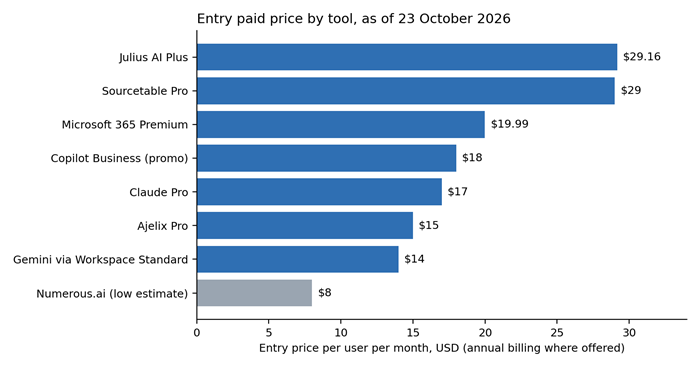
Entry price per user per month. Copilot, Gemini and Claude are full suite plans, so they include much more than spreadsheet AI. The Numerous.ai bar uses the lowest price reported, which is unconfirmed.
| Feature | Copilot | Gemini | Claude | GPT for Work | Numerous | Ajelix | Sourcetable | Julius |
|---|---|---|---|---|---|---|---|---|
| Works in Excel | Yes | No | Yes | Yes | Yes | Yes | No | No |
| Works in Google Sheets | No | Yes | No | Yes | Yes | Yes | No | No |
| AI formula in a cell | Yes | Yes | Not documented | Yes | Yes | Not documented | No | No |
| Multi-step agent | Yes | Yes | Yes | Yes | Not documented | Yes | Yes | Chat-based |
| Charts or dashboards | Yes | Yes | Yes | No | Not documented | Yes | Yes | Yes |
| Free plan or trial | No | Not verified | No | Trial balance | 60 free tokens | Yes | Yes | Yes |
“Not documented” means we found nothing in the vendor’s own material. It does not mean the feature is impossible.
Imagine a sheet with 600 customer comments that must be sorted by topic before Monday. Copilot can do that without leaving Excel. You type something like =COPILOT(“Classify this feedback”, D4:D18) and it labels each row. The labels update when the data changes. Copilot also has a chat pane for questions, summaries, formulas and charts, and Microsoft lists agents that can make multi-step edits.
It has limits you should know about. The COPILOT formula only sees the cells you give it, not the rest of the workbook. It will not run on files marked Confidential or Highly Confidential. And it is built for fuzzy jobs like sorting text, not for exact math you need to repeat. When we checked, the formula was still reaching users through Microsoft’s early-access programs.
Microsoft does not sell Copilot for Excel on its own. For individuals in the US, Microsoft 365 Personal costs $99.99 a year, Family $129.99, and Premium $19.99 a month. Only Premium unlocks the COPILOT formula. At work, Business Standard with Copilot is $23.50 and Business Premium with Copilot is $32 per user per month, billed yearly. The Copilot Business add-on lists at $21, with a promo price of $18 whose end date is reported as either 30 September or 31 December 2026. The full add-on is $30. There is no free option, and prices change by country.
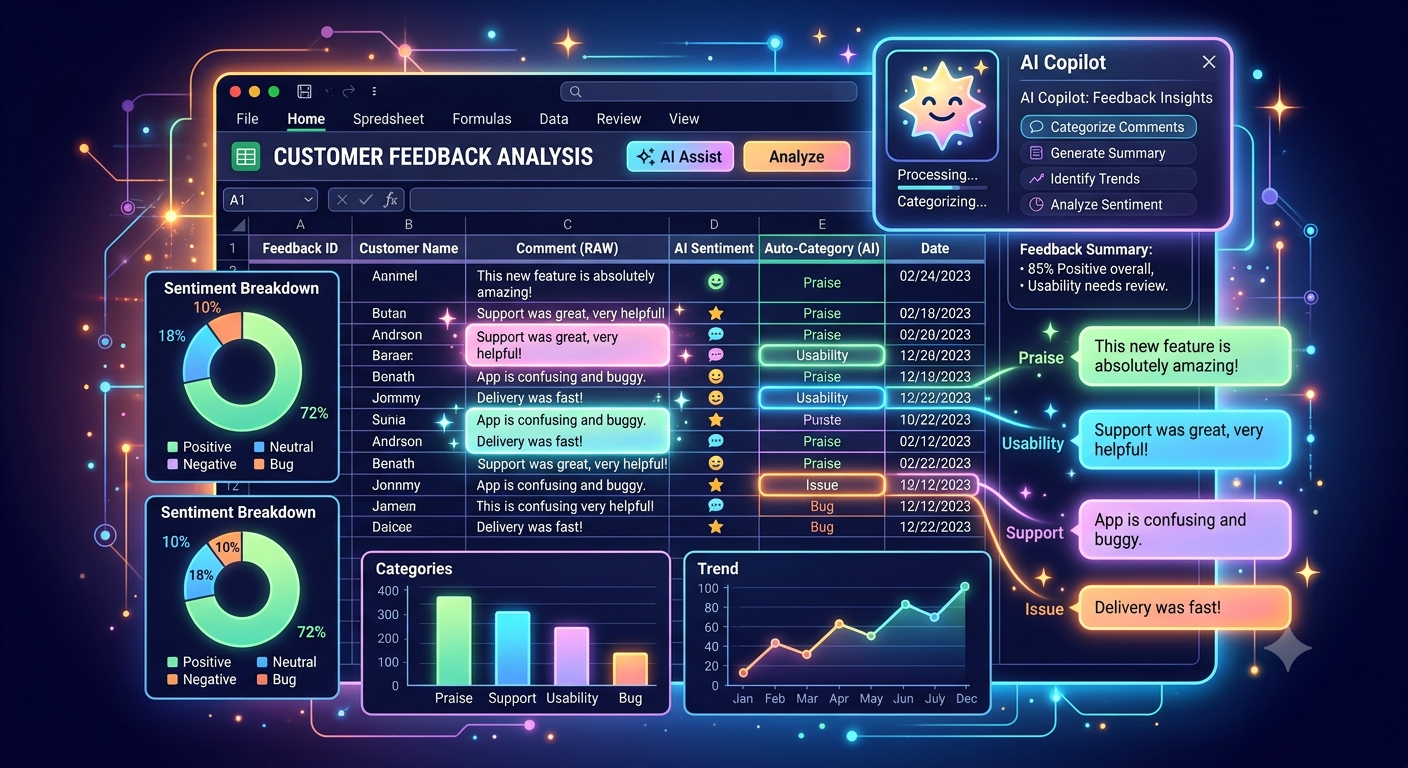
Gemini is already built into Sheets, so there is nothing to install. Since an update on 22 April 2026, you can describe a project tracker or a small business budget in plain words, and Gemini builds the tabs, formulas, pivot tables and charts. It can also use information from your other Workspace files, emails and chats.
For everyday work, you will probably use the side panel. It writes a formula, explains each part and suggests a fix when one breaks. There is also an =AI(“prompt”, A2) formula that summarizes or sorts text row by row. One guide says it handles about 350 cells at a time, and every use counts toward your Gemini limit. Anything that must run on a schedule or reach other systems still needs Apps Script or another tool.
Google lists Workspace Business Starter at $7, Standard at $14 and Plus at $22 per user per month on yearly billing (monthly billing is $8.40, $16.80 and $26.40). The AI formula is listed for Standard and Plus, and Starter gets a limited version of Gemini. An add-on called AI Expanded Access raises the limits, but we could not verify its price. Personal accounts need Google AI Pro, which outside sources put at $19.99 a month in the US. Prices outside the US, including India, will differ.

Say you inherit a 12-tab model and need to know where one number comes from. That is where Claude in Excel is strongest. It is an add-in from Anthropic that opens a Claude panel inside Excel. It reads the whole workbook, explains calculations with references to specific cells, and changes assumptions without breaking the formulas that depend on them. It can also build pivot tables and charts, accept file uploads and show its changes step by step.
It works like a careful helper, not a scheduler, so it will not run jobs on its own. Anthropic’s help page says some advanced Excel features are not supported, so read it before using Claude on a critical file. On Team and Enterprise plans, the add-in also does not follow your custom data retention settings and does not appear in audit logs. That could be a problem for regulated companies.
There is no extra fee for the add-in, but you need a paid Claude plan. Free accounts cannot use it. Pro costs $20 a month, or about $17 a month if paid yearly. Max costs $100 or $200 a month and Team starts at $25 per seat. Usage limits are shared with everything else you do in Claude, so very long sessions may hit them.

Most tools here choose the AI model for you. GPT for Work lets you pick, which helps when one job needs a cheap, fast model and another needs the best one. It is a set of add-ons for Google Sheets and Excel (plus Docs and Word) that supports models from OpenAI, Anthropic and Google.
Its main strength is bulk work. You can run one prompt over thousands of cells, for example to pull a company name out of every row. It also has agent models that can create new sheets and reorganize data, and you can set how hard each model should “think.” It does not make charts or dashboards, and results depend on the model you choose, so check them.
Billing works differently from the others. You get a free trial balance, then buy prepaid credit that is used up per million tokens. For example, GPT-5.5 costs $50 per million tokens without your own API key, or $1 if you bring your own key and pay OpenAI separately. Since June 2026 some new accounts also see monthly subscription plans, which require your own key. We could not find public prices for those as of 23 October 2026. This tool is best for people who are comfortable managing keys and usage, such as marketers and researchers.
Suppose you have 3,000 product titles and want each one assigned a category. Numerous.ai is made for this. You type one =AI formula and drag it down the column. It works in both Google Sheets and Excel. Other listed features include writing formulas from a plain-English description, an “Explain formula” button for sheets you inherit, sorting items into groups, formatting cells and handling repetitive chores.
Everything happens one cell at a time. It does not build dashboards or chain steps together, so treat the output as a first draft and check a sample.
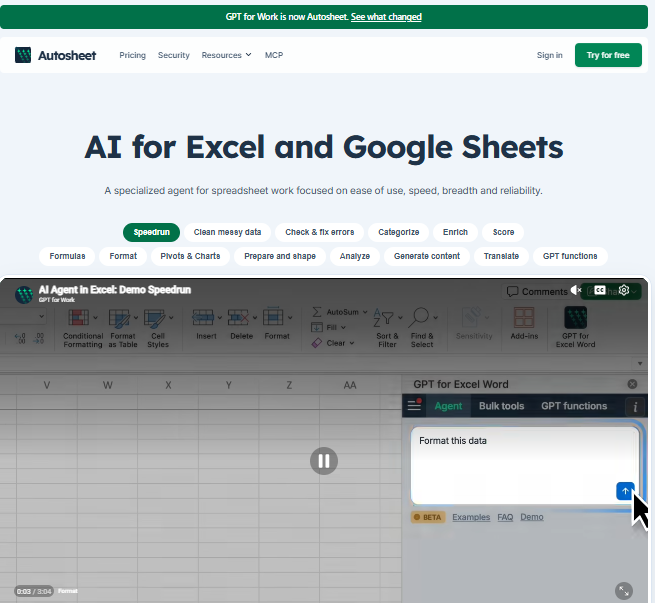
Pricing is hard to pin down because plans only show up during sign-up. The Microsoft Marketplace listing says every user gets 60 free tokens (roughly 30,000 characters), with paid plans from $10 a month. A newer review, written by a competitor, reports $8 a month on yearly billing and $19 on monthly billing for the Personal plan. Because the sources disagree, the exact current price is not publicly verified as of 23 October 2026. Usage is counted in characters, so long text uses it up fast.
Ajelix puts three jobs under one login: writing formulas, writing scripts, and building dashboards. You can use it through an Excel add-in, a Google Sheets add-on or the Ajelix website.
Separate tools write and explain formulas for Excel and for Google Sheets. An AI editor writes VBA for Excel, and Google Apps Script for Sheets. A business intelligence tool turns spreadsheet data into dashboards, and Ajelix also advertises a chat that works directly in your sheets. In practice, automation here means generated code. You read it, test it and run it yourself.

There is a free plan, but Ajelix’s own pages disagree on whether it gives 5 or 10 AI requests, so check before relying on it. The first paid tier gives 250 AI messages a month and one dashboard. A January 2026 review lists Pro at $20 a month ($15 if paid yearly), Expert at $50 ($38) and Business at $100 ($75). Higher tiers raise the message and dashboard limits. One review says dashboard customization is limited, which matters if you need very polished reports.
Sourcetable is a different kind of tool. It is a stand-alone spreadsheet where an AI agent does much of the building. You import Excel or CSV files, or connect live data sources such as PostgreSQL, BigQuery, Snowflake, Google Analytics 4, Salesforce, HubSpot, Stripe and Shopify.
You ask in plain English for calculations, pivot tables and charts. Data cleaning and template building are included even on the free plan. Paid plans add a Python toolkit, a SQL editor and a Deep Research agent for longer analysis. Because SQL and Python sit behind the grid, it should handle larger data than a per-cell AI formula, but we did not test dataset limits.
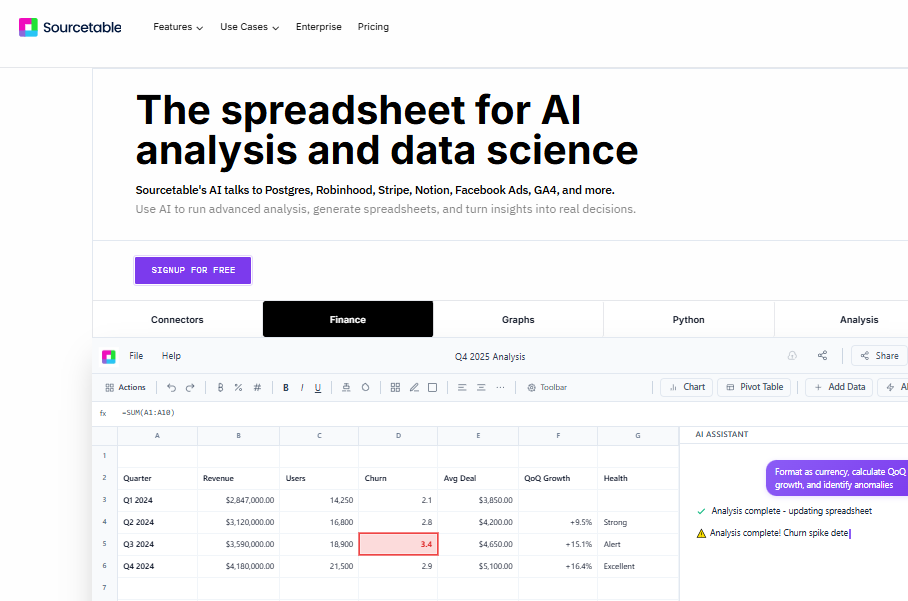
An outside tracker that read Sourcetable’s pricing page on 12 October 2026 reports: Free at $0 with daily credits and no connectors; Pro at $29 per user per month with 2,000 credits and 3 connectors; Max at $100 with 6,000 credits and unlimited connectors; and custom Enterprise pricing. Extra credits cost about $0.02 each on Pro. The catch is that you leave Excel or Sheets behind. Also, its SOC 2 Type II security certification was listed as in progress, not finished, which may rule it out for regulated teams.
Upload a survey file, ask “which customer group leaves fastest?”, and Julius replies with a chart and a written answer. It is a chat-style data analyst that sits beside your spreadsheet instead of inside it. It reads CSV and Excel files and can connect to databases.
It filters, sorts and compares data from plain-English questions, draws charts, and can work across several files at once. Notebooks save your steps so you can rerun the same analysis on new data. One review says it can also run statistical tests and machine-learning models, and there is a Slack option for teams. The same review warns that Julius sometimes misreads a vague question and runs the wrong analysis. Results stay inside Julius until you export them.
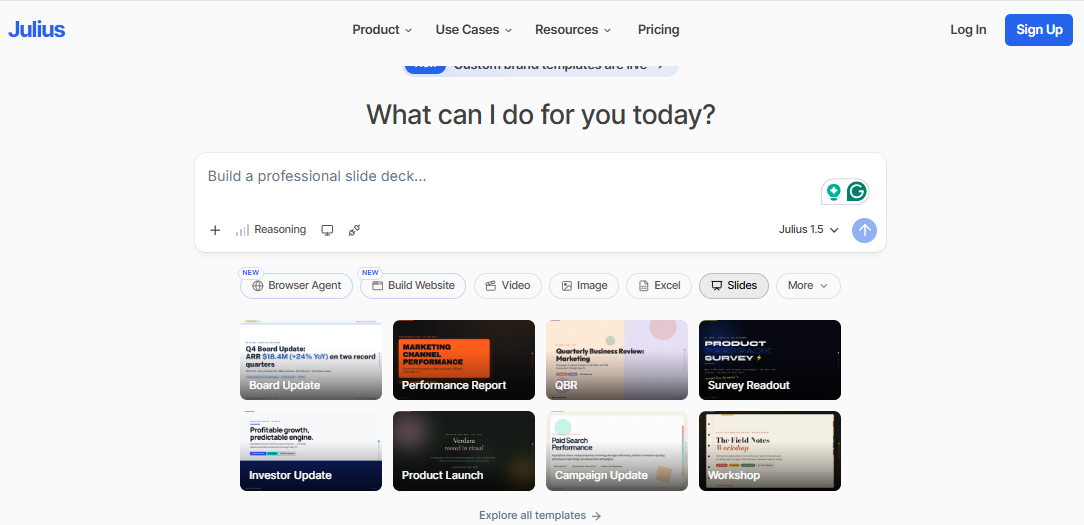
A July 2026 outside check of Julius’s pricing shows a free plan with 15 messages a month, Plus at $35 a month ($29.16 if paid yearly), Pro at $45, and Business at $450 (another report says $375). Unlimited messages start at Pro. Older articles show lower prices, so confirm on the live page. Fifteen free messages are not enough for a real trial, so plan to pay for at least one month if you want to test it properly.
These picks follow what each vendor documents, not our own tests.
• Complex Excel formulas: Claude in Excel for models you must check. Copilot if you want it built in. Ajelix if budget matters.
• Google Sheets analysis: Gemini, because it is built in and can create pivots, charts and full sheets.
• Cleaning messy data: Numerous.ai or GPT for Work for row-by-row cleanup. Sourcetable when cleaning is part of a bigger analysis. Always spot-check the results.
• Large datasets: Sourcetable and Julius work outside the spreadsheet grid, which suits big data better than per-cell formulas. We did not benchmark either.
• Reports and charts: Ajelix for dashboards, Julius for quick charts, Gemini for charts inside Sheets.
• Repetitive automation: Ajelix for generated VBA or Apps Script, GPT for Work for bulk cell jobs, Copilot agents for multi-step Excel edits. Read any script before running it on live data.
• Business and financial analysis: Claude in Excel for models, Copilot in Microsoft shops, Sourcetable when sales or payment data must flow in.
• Free or low-cost option: Ajelix and Sourcetable free plans for testing. Gemini if you already pay for Workspace Standard. Numerous.ai at roughly $8 to $10 a month.
| Tool | Free Option | Lowest Relevant Paid Plan | Billing Basis | Extra Requirements |
|---|---|---|---|---|
| Excel with Copilot | None for individuals | Personal $99.99/year; Premium $19.99/month; work add-on $18 promo or $21 | Per user | Microsoft 365 plan; COPILOT formula needs Premium or a work add-on |
| Google Sheets with Gemini | Not verified | Business Standard $14/user/month (yearly); Starter $7, limited | Per user | Workspace plan; add-on price not verified |
| Claude in Excel | No | Pro $20/month or $17 yearly | Per user | Excel add-in; shared usage limits |
| GPT for Work | Free trial balance | Pay as you go; subscription prices not verified | Prepaid, per token | Optional own API key |
| Numerous.ai | 60 free tokens | From $10/month, or $8 yearly per one report | Per user, by characters | Sources disagree on price |
| Ajelix | Yes | Pro $20/month or $15 yearly | Per user | Higher tiers add dashboards |
| Sourcetable | Yes | Pro $29/user/month | Per user, by credits | Extra credits about $0.02 each |
| Julius AI | Yes (15 messages) | Plus $35/month ($29.16 yearly) | Per user, by messages | Unlimited from Pro at $45 |
The cheapest number is not always the best deal. Copilot, Gemini and Claude come as part of bigger plans, so your real cost depends on whether you already pay for them. GPT for Work can add fees from the AI provider, and credit systems at Sourcetable and Julius can cost more if you use them heavily. All prices are in US dollars and vary by country, tax and billing period.
1. Start with where your files are. Copilot and Claude work in Excel. Gemini works in Sheets. Numerous.ai, Ajelix and GPT for Work work in both.
2. Match the tool to your data. A column of 5,000 text entries suits an AI formula. Data from many sources suits SourceTable or Julius.
3. Decide what you need. Help with single formulas is easy to find. Chaining many steps needs an agent or a generated script.
4. Check privacy before you upload. Copilot’s formula skips files marked Confidential. Claude’s add-on is outside audit logs on Team and Enterprise plans. Your company policy decides what is allowed.
5. Make sure you can get results out in a format your team uses.
6. Add up the real cost, including the base plan, any add-ons, and extra usage.
7. Always check the output. Compare generated formulas and summaries with a sample you verified by hand.
We cannot name one winner among the best AI spreadsheet tools. They solve different problems, and no source we found compared them side by side.
If your company runs on Microsoft 365, try Copilot first, but expect confusing pricing and a formula that only sees the cells you give it. If you use Google Workspace, test Gemini first, though Starter users will hit limits. Financial modelers should try Claude in Excel and check the data retention question. If you are on a budget or switch between Excel and Sheets, Ajelix or Numerous.ai can take you far, with a smaller feature set. And if you pull data from many places, compare Sourcetable and Julius, knowing both mean working outside your current spreadsheet.
Whatever you shortlist, test it on a copy of a real file before you pay.

People come to InSnoop to do one thing that is to watch a public Instagram Story without opening it from their own accou...

Three charts. Zero sign-ups. One nagging question answered.Every "free AI tool" lives in one of two worlds. In the first...

Lenso.ai is a reverse image search tool. You upload a photo, and it shows you where that photo appears online. It can al...

Phyzii is a cloud-based CRM built by Cirrius Technologies specifically for pharmaceutical and life sciences sales teams....